Person image stays the anchor
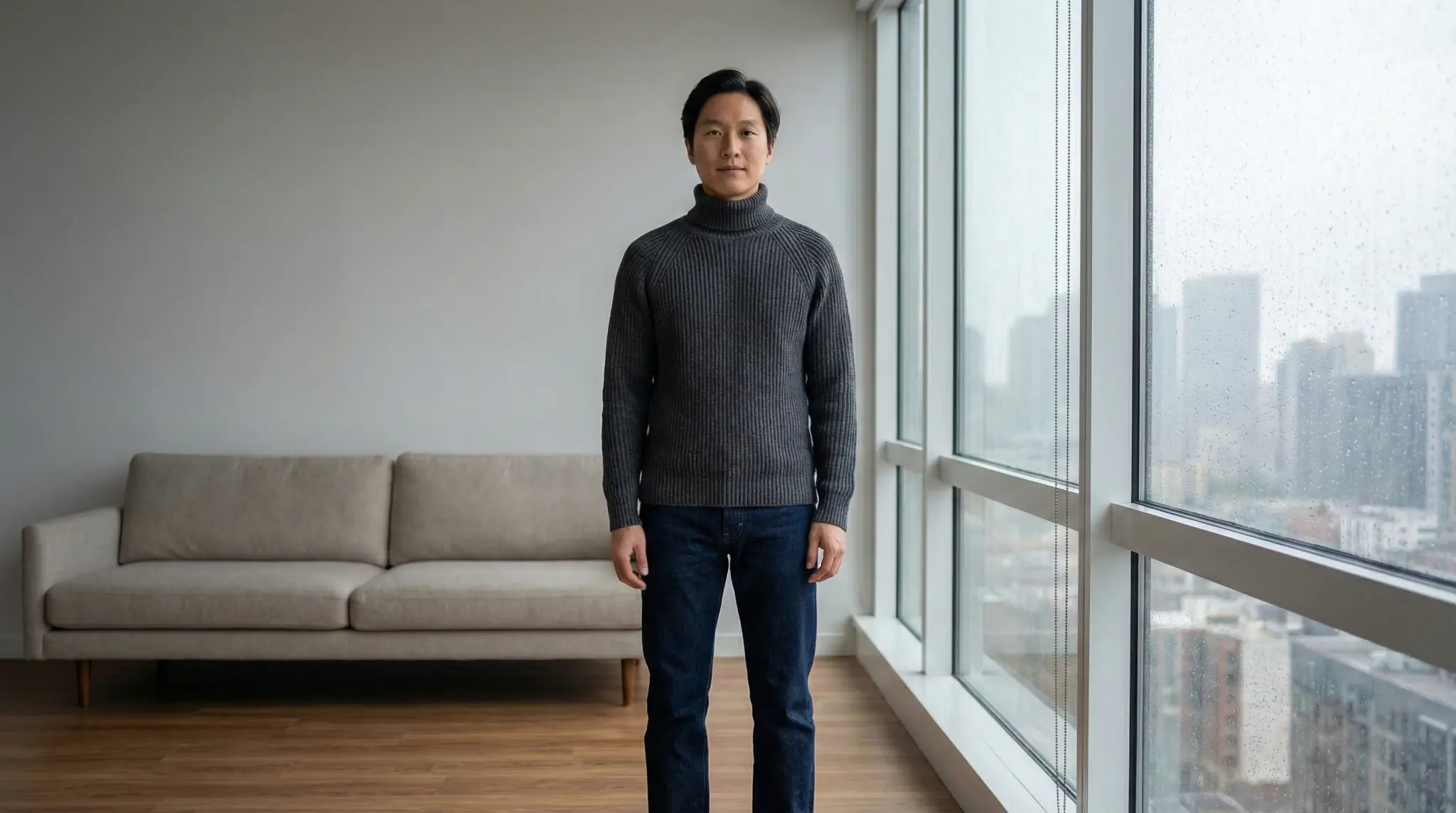
The prompt asks GPT Image 2 to preserve the source person's identity, camera angle, background, and overall pose as much as possible while changing the outfit region.
Use a GPT Image 2 powered image-editing workflow to preview outfits on a real photo. Add a person image, upload garments, and generate a realistic virtual try on in the workspace below.

Virtual try on
Upload a person photo plus a top garment. Add bottoms if you want a complete outfit, then choose a supported aspect ratio and resolution.
The workspace keeps the model choice internal and turns your intent into structured prompts and provider-supported settings.
The prompt separates person, garment, edit scope, identity preservation, and output cleanliness.
New generations use GPT Image 2 ratios: auto, 1:1, 9:16, 16:9, 4:3, and 3:4.
Focus controls still let you prioritize outfit fidelity or the person without exposing raw model routing.
Upload a person photo plus a top garment. Add bottoms if you want a complete outfit, then choose a supported aspect ratio and resolution.
Loading workspace…
AnyTryOn turns a person photo and garment references into a focused image-edit request, so the model edits the clothing area instead of treating every upload as a new scene.
The prompt asks GPT Image 2 to preserve the source person's identity, camera angle, background, and overall pose as much as possible while changing the outfit region.
Top and bottom uploads are used for color, silhouette, fabric, and recognizable design details. Unrelated product backgrounds, people, props, and text are intentionally ignored.
The workspace only exposes ratios and resolution choices that can create a valid GPT Image 2 image-to-image task, so invalid combinations are handled before you generate.
These controls are designed around GPT Image 2 image-to-image limits and practical try-on quality, not around every legacy AnyTryOn size.
When aspect ratio is auto, AnyTryOn selects 1K because higher resolutions with auto can fail provider task creation. Use a specific ratio when you need more control.
The 1:1 ratio does not expose 4K. Choose a non-square supported ratio such as 3:4, 4:3, 9:16, or 16:9 when higher resolution is available and useful.
2K or 4K is most useful for full-body framing, visible fabric texture, ecommerce previews, and non-square compositions. For quick outfit drafts, 1K is usually enough.
Virtual try-on quality depends heavily on whether the model can understand the body, the pose, and the garment reference without fighting the source image.
Use a person photo where the torso, waist, and target clothing region are visible. Side poses, seated poses, cropped limbs, and hands in pockets can still work, but results may need more natural inference.
Garment images work best when the clothing is the main subject. Avoid heavy text, logos, unrelated props, or multiple people when you want a cleaner AI clothes changer result.
If arms, bags, hair, or a turned body cover part of the outfit, the workflow favors a natural edit over forcing the garment into a flat front-facing product view.
Use this page when you want model-specific try-on traffic, or jump to a broader AnyTryOn tool when the task is not about GPT Image 2 specifically.
Start from the main workspace when you want the broad AnyTryOn experience with the default virtual try-on flow.
Open AnyTryOnUse the clothes changer page when the intent is simply swapping outfits in a photo, without model-specific wording.
Explore AI clothes changerUse the dress page for one-piece garment previews such as dresses, bridal looks, and event outfits.
Try dresses onlineReview pricing when you need account-based access to higher resolution generation for supported ratios.
View pricingA short workflow for clean GPT Image 2 try-on inputs.
Use a clear photo where the subject, pose, and clothing area are easy to see.
Upload a top image and optionally a bottom image. Clean garment references give stronger edits.
Auto outputs 1K, square supports up to 2K, and other supported ratios can use higher quality when available.
What to know before you generate.
It is an image-editing workflow that uses GPT Image 2 style image-to-image generation to place uploaded garment references onto a person photo.
No. AnyTryOn keeps model routing internal so you can focus on the photo, garment, style, ratio, and resolution choices.
New generations support auto, 1:1, 9:16, 16:9, 4:3, and 3:4. Legacy ratios remain visible on old history items but are not offered for new generations.
4K depends on your account entitlement and the selected ratio. Auto ratio stays at 1K, and 1:1 square images support up to 2K.
Use a well-lit person photo and clear garment images. Avoid reference photos where unrelated people, backgrounds, text, or props dominate the garment.
AnyTryOn is an independent product and is not affiliated with or endorsed by OpenAI.